
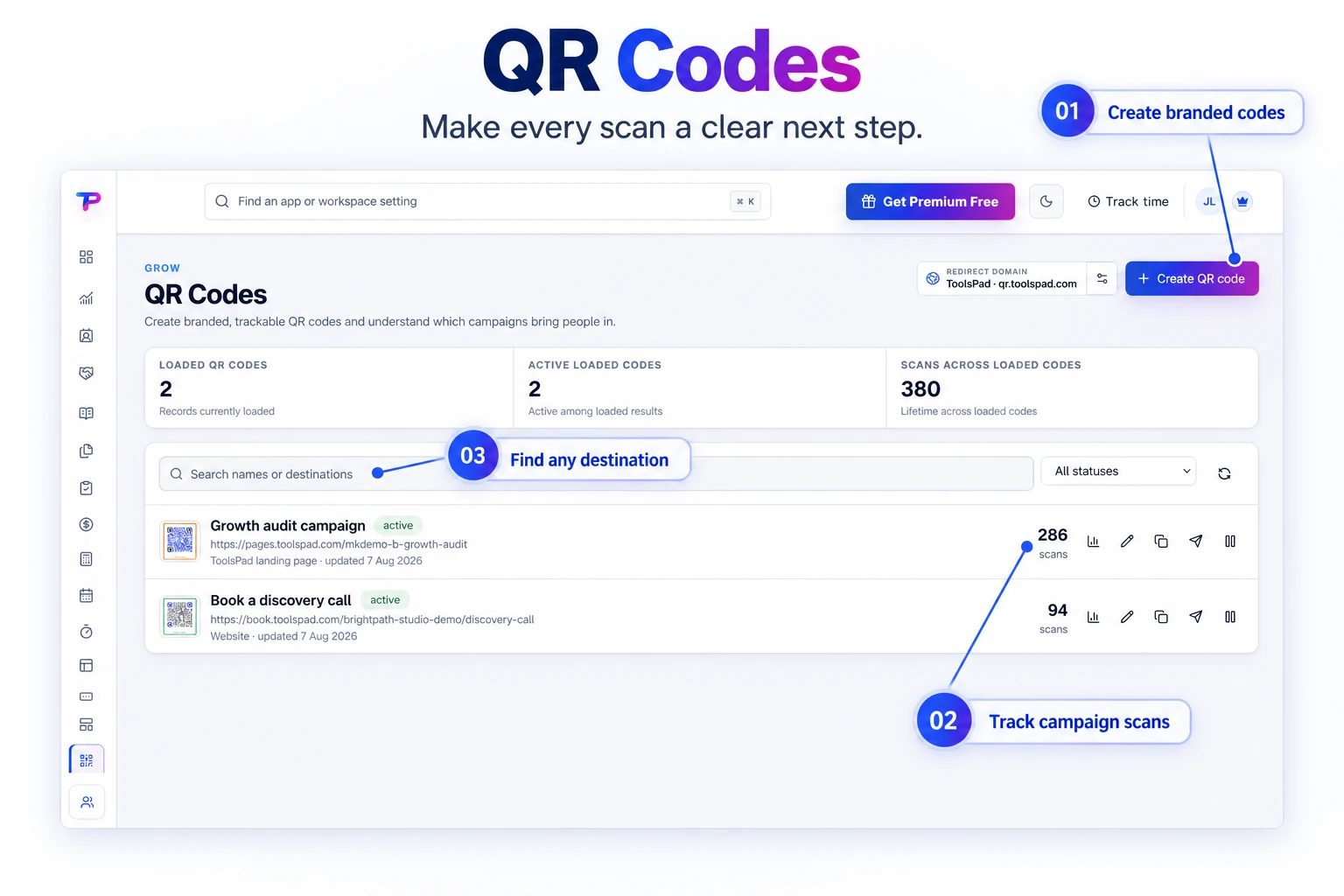
Permanent dynamic links
Keep the printed QR code while changing its destination later from your ToolsPad workspace.
Design permanent dynamic QR codes with ready-made themes, exact brand colors, dependable downloads, editable destinations, and a cumulative scan count for every campaign.
Review QR designs, destinations, campaign status, and recorded scans in one library. Find the code behind each promotion when it is time to update or review it.
Print once, update the destination when plans change, and see which campaign earns attention.
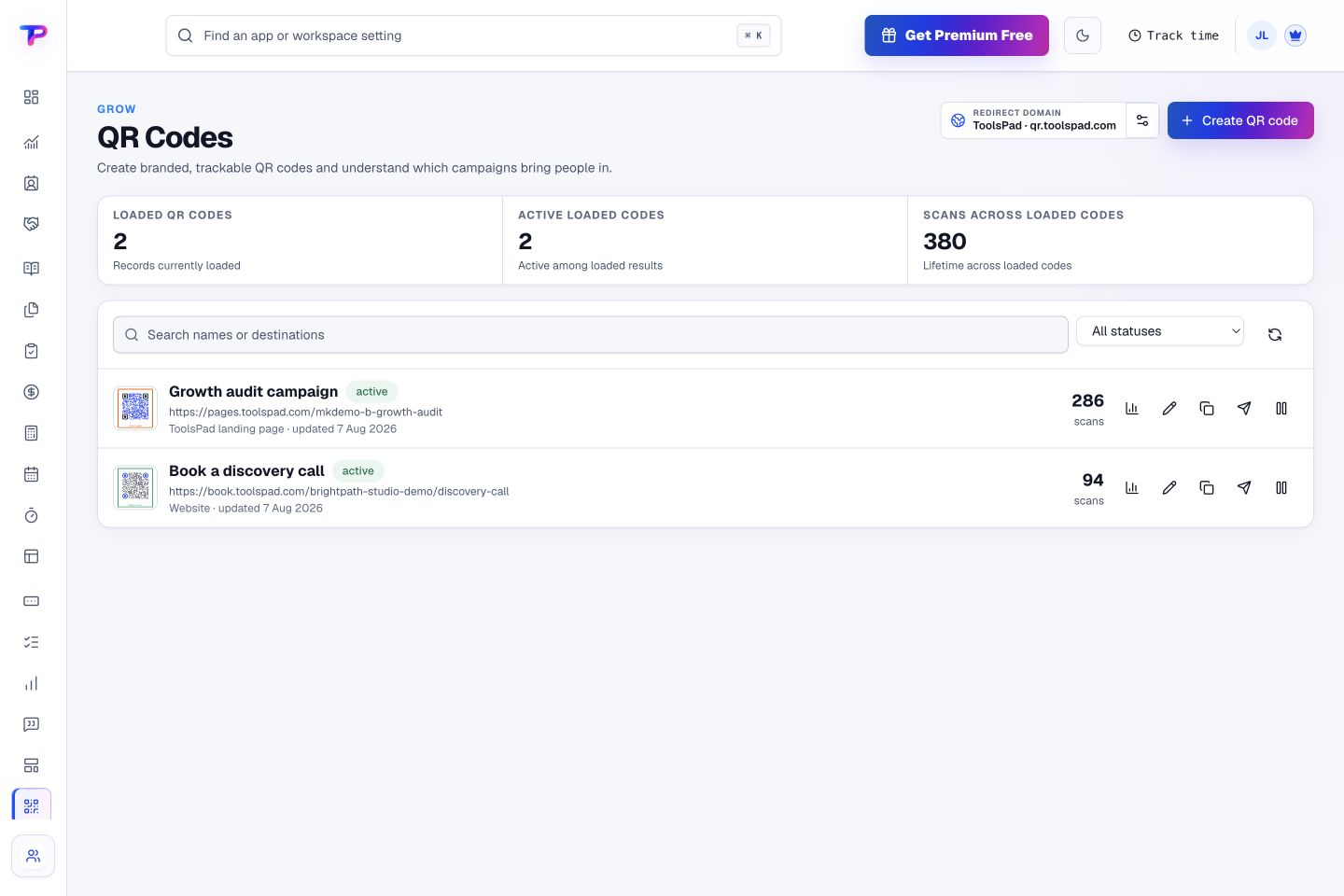
Keep the printed QR code while changing its destination later from your ToolsPad workspace.
Start from scan-safe presets or enter precise hex values for your brand colors.
Download crisp PNG sizes, scalable SVG artwork, or a print-ready PDF for menus, signs, packaging, and campaigns.
Name, search, duplicate, pause, archive, and manage multiple QR codes from one calm view.
See how many valid scans each QR code has received without collecting visitor profiles or location history.
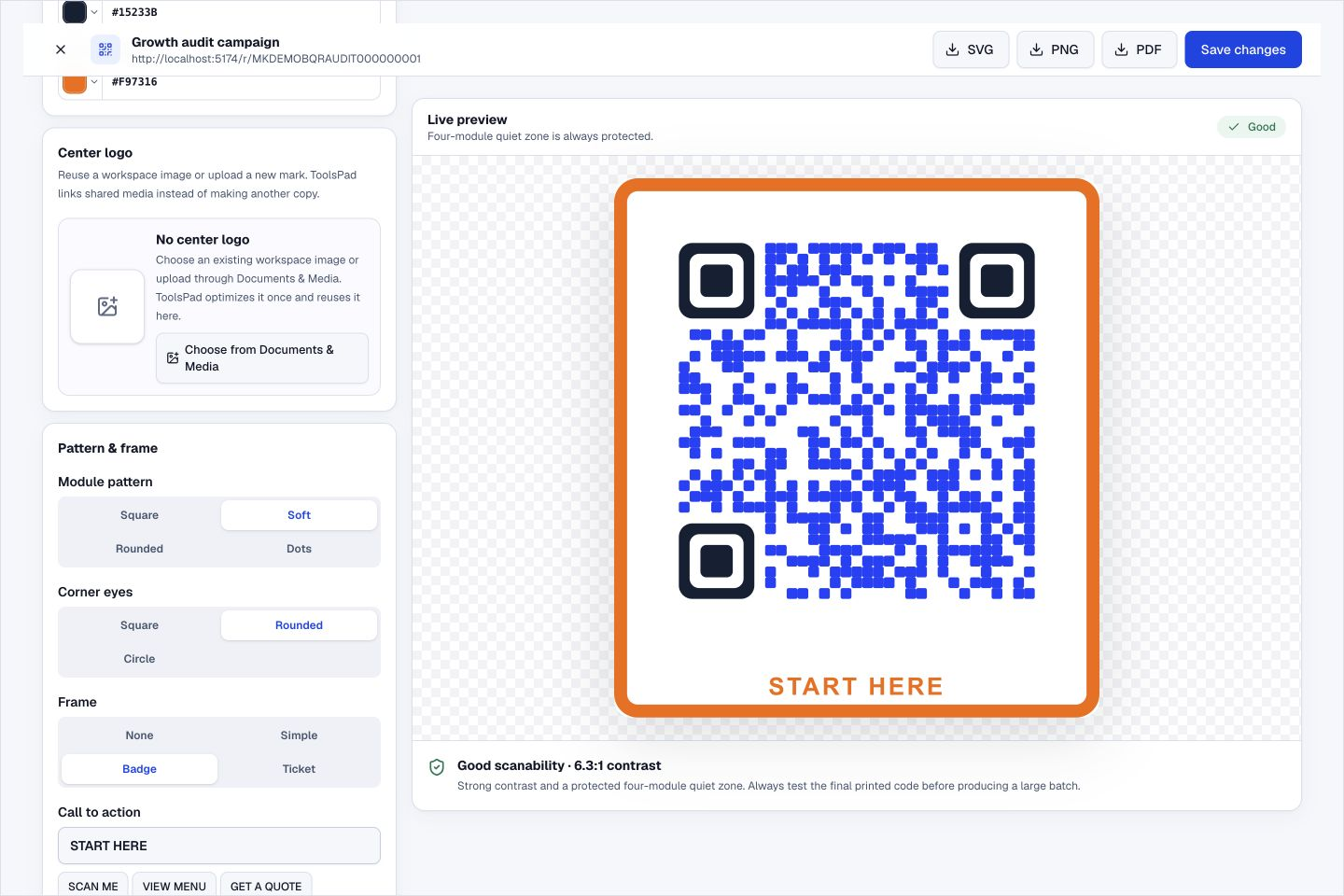
ToolsPad protects the quiet zone and warns when a color combination may be unreliable to scan.
Choose crisp squares, softened modules, circular eyes, dots, branded frames, and exact hex colors. Every preset keeps a protected quiet zone and high error correction for dependable scanning.
Adjust the pattern and frame in the design studio to create a visual treatment that fits the campaign around it.
Link a URL or select an existing ToolsPad form, page, testimonial wall, survey, poll, or booking page.
Choose module and eye styles, exact colors, theme, error correction, and an optimized center logo.
Export for print or digital use, update the destination when plans change, and see how often the code is scanned.
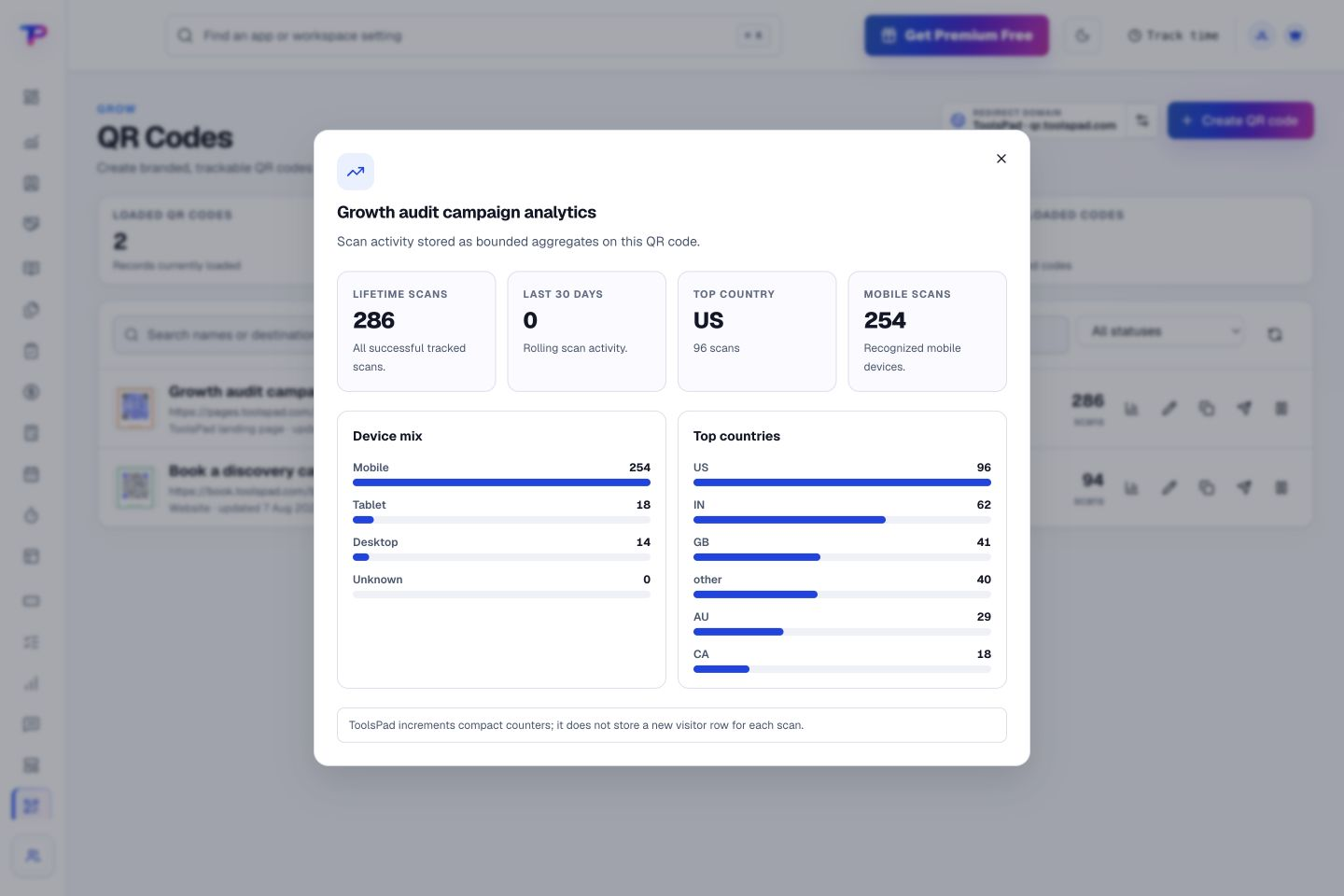
Compare lifetime and recent scan activity, then explore device and country breakdowns. See the reach behind the code, illustrated here with sample data.
Send each scan straight into the right ToolsPad customer journey.
Turn website enquiries into organized leads.
Route visitors and compare campaign results.
Keep ideas, briefs and decisions easy to find.
Map ideas alongside the work they belong to.
Give every next step an owner and a deadline.
Ask better questions. Learn from every response.
Let your audience help make the next decision.
Build a focused page around your next offer.
See what renews before you pay again.
Turn your proposal into a clear, professional quote.
Prepare clear invoices and track their status.
Collect customer stories and publish your best proof.
Work through pricing, margins and business scenarios.
Let customers choose a time that works.
Know where the working hours are going.
Keep contacts, context and follow-ups together.
Keep promising deals moving toward a decision.
Bring useful business signals into one view.
Find, share and reuse your business files.
Give your expertise a place to grow.
Create branded QR codes and review their reach.
You’re hereMore tools. One free account.Scroll to explore, or use the arrows.
Clear answers before you create your first qr code generator workflow.
Yes. ToolsPad dynamic codes use a permanent redirect, so you can update the destination without reprinting the QR artwork.
ToolsPad keeps a cumulative scan count for each QR code and filters obvious preview bots. It does not build visitor profiles or store scan-location history.
Yes. Enter a hex color directly or start from a scan-safe theme. ToolsPad warns when foreground and background contrast is unsafe.
Yes. One free account includes all 21 ToolsPad apps within Free plan limits, unlimited human teammates, and 30 days of Premium to explore—no card required. Afterward, continue on Free or choose a paid plan for more capacity and advanced features.
Start with QR Code Generator today. Add the other apps as you need them—all from the same free account.